
How to Install Age of Empires 2 on Mac in 2026
To install Age of Empires 2 on a Mac in 2026, you can use the official native version launched by Feral Interactive, which offers smooth gameplay optimized for Apple Silicon Macs through platforms like Steam or Feral Store. Alternatively, compatibility layers such as CrossOver or Wine allow running the Windows version by managing system dependencies and graphics libraries. You can also set up Windows virtual machines using Parallels Desktop, or investigate cloud gaming options. Further details help guarantee you choose the best method for your setup.
Scout Report
- Purchase and install the native macOS version of AoE2 via Steam or Feral Store for seamless performance on Apple Silicon Macs.
- Use compatibility tools like CrossOver or Wine with DXVK and DLL overrides to run the Windows version if needed.
- Set up a Windows virtual machine with Parallels Desktop for better performance or cloud gaming options.
- Optimize graphics settings and install runtime packages like vcrun2019 for improved stability and visuals.
- Manage game files and mods carefully, considering platform differences for multiplayer and mod support.
Overview: Playing Age of Empires II on Mac in 2026

In 2026, playing Age of Empires II on a Mac is possible through various methods, even though the game was originally designed for Windows systems.
Compatibility updates and tools like Wine, CrossOver, and Bottles help run the game by addressing multiplayer challenges and improving performance. These solutions enable Mac users to access and play Age of Empires II effectively.
Additionally, the Feral Interactive port launched in May 2026 offers a native experience, making gameplay smoother and more integrated with macOS.
How to Set Up the Official macOS Version of AoE2
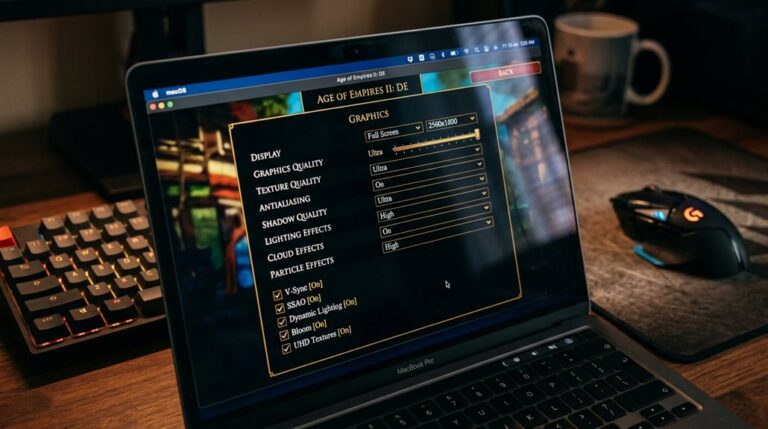
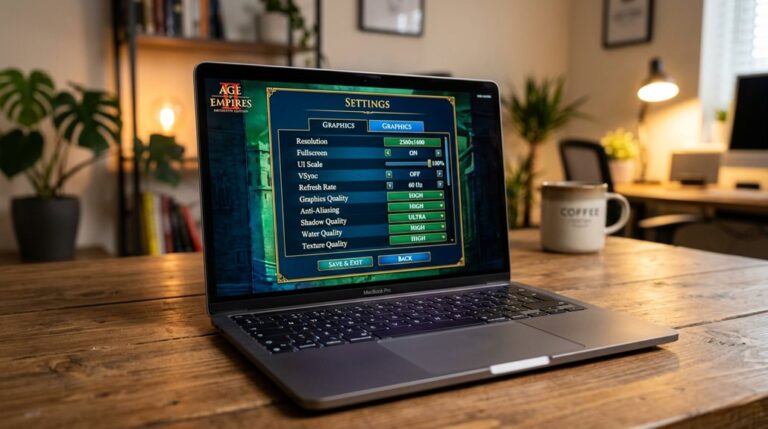
Setting up the official macOS version of Age of Empires II: Definitive Edition is straightforward, starting with purchasing from Steam or the Feral Store. After installation, you can access multiplayer modes and customize game settings, including graphics and controls. This guarantees maximum performance on Apple Silicon Macs, supporting game customization and allowing you to enjoy multiplayer gameplay smoothly. Additionally, the game benefits from over 20 years of game refinements, ensuring a polished and optimized experience on your Mac. Be aware that the Feral Interactive port will include most features of the PC version, with some Mac-specific limitations to consider.
Playing AoE2 on Mac Using Compatibility Layers (CrossOver, Wine, Wineskin)
To play Age of Empires 2 on your Mac using compatibility layers, you need to set up tools like CrossOver, Wine, or Wineskin properly by configuring their settings for peak game performance. This process involves managing system dependencies such as libraries and drivers, adjusting options like DirectX support, and installing necessary components like Steam and game files within these environments. Carefully following these steps guarantees the game runs smoothly and reliably on your Mac system. Ensuring compatibility with modern graphics APIs is crucial for a seamless gaming experience, especially with newer versions of the game. Additionally, understanding build order strategies can help optimize gameplay performance once the game is running.
Setting Up Compatibility Tools
Using compatibility layers like CrossOver, Wine, and Wineskin allows you to run Age of Empires 2 on a Mac by creating a bridge between the game’s Windows-based software and the macOS environment.
These tools address hardware compatibility issues and modify the user interface to suit Mac systems, ensuring smoother operation and better integration for playing the game effectively.
Configuring Game Performance
Optimizing game performance when playing Age of Empires 2 on a Mac with compatibility layers involves configuring several key settings to guarantee smooth gameplay and stability.
You should enable DXVK in Steam, set DLL overrides like `ucrtbase.dll` to native, and adjust launch options such as “SKIPINTRO.”
Additionally, customizing keybindings and ensuring multiplayer stability by selecting the correct game profile help prevent desynchronization and crashes.
Managing System Dependencies
Managing system dependencies is crucial for Age of Empires 2 to run smoothly on a Mac using compatibility layers like CrossOver, Wine, or Wineskin.
You must guarantee hardware compatibility by selecting the right wrapper engine and configuring DLL files correctly.
Additionally, proper software licensing is necessary for installing runtime packages like vcrun2019 and vcrun2022 inside the environment.
Installing Age of Empires 2 With Parallels Desktop and Windows Virtual Machines
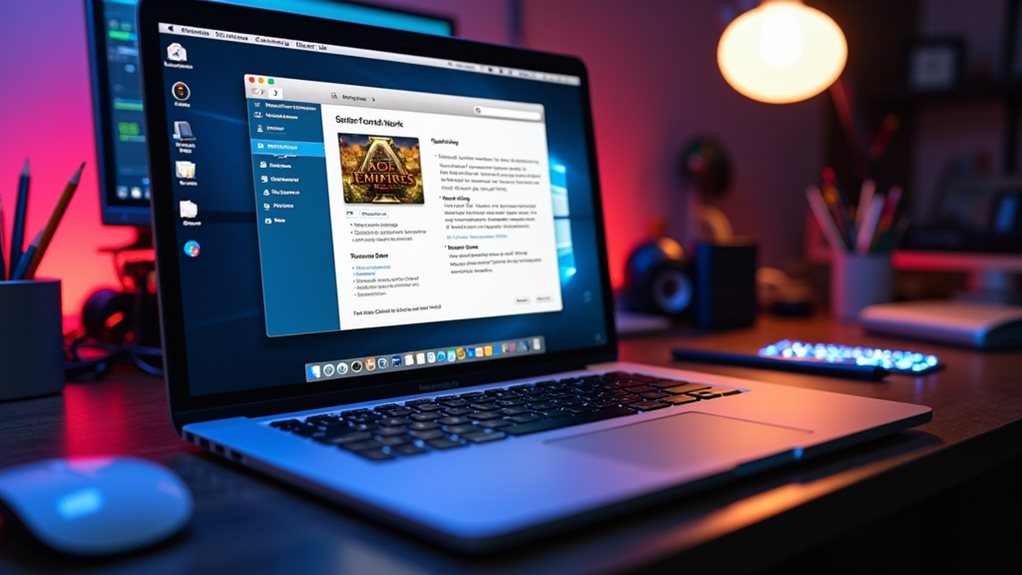
To install Age of Empires 2 on your Mac using Parallels Desktop and a Windows virtual machine, you first need to set up the virtualization software. Make certain your Mac meets hardware requirements, including at least 8GB RAM and 10GB storage, and consider hardware upgrades for better performance. Enable the Gaming Profile in Parallels, and note that cloud gaming options may also support smoother gameplay. Additionally, be aware that visual parity between platforms can influence your gaming experience, so adjusting settings accordingly can help optimize gameplay quality.
Configuring Wine and Compatibility Settings for Better Performance
Configuring Wine and compatibility settings is crucial for improving the performance of Age of Empires 2 on a Mac. To guarantee Wine stability and graphics compatibility, select Wine version 3.17 or WS11WineCX64Bit22.1.1-8. Enable 64-bit mode and update DXVK to version 1.10.3 or higher. Adjust library overrides, install necessary runtime packages, and enable high-resolution settings for the best gameplay. Additionally, understanding build orders and when to use each can enhance your gaming strategy, especially when configuring your setup for optimal performance.
Troubleshooting Common Issues When Installing or Running AoE2 on Mac
When installing or running Age of Empires 2 on a Mac, various issues can arise that prevent the game from functioning correctly. These often involve hardware compatibility problems, such as overheating or inadequate graphics settings.
A hardware compatibility issue may also be caused by running the game on older Apple Silicon hardware that does not meet the recommended system requirements.
Software updates that are missing or incomplete can also cause issues. Ensuring your system has the latest updates and compatible hardware can resolve many common problems.
Optimizing Graphics and Performance With Library Overrides

To improve the graphics and performance of Age of Empires 2 on your Mac, you need to adjust DLL override settings, such as configuring specific libraries like concrt140.dll and ucrtbase.dll to run at their best. You should also set up the DXVK backend to translate DirectX calls into Vulkan, which can enhance game speed and visuals. Make certain you have the latest Visual C++ Runtime installed for compatibility. Properly configuring these library overrides and runtime installations helps your game run more smoothly and with better graphics quality. Additionally, understanding the game’s architecture can help you optimize settings further for a smoother experience.
DLL Override Settings
DLL override settings in Wine can substantially improve the graphics and performance of Age of Empires 2 on a Mac by allowing you to customize how certain system libraries, like ucrtbase.dll and concrt140, are handled.
You can set dll override to Native/Builtin or override placement in the Windows System32 directory, optimizing system dependencies for better stability and efficiency.
Configuring DXVK Backend
Configuring the DXVK backend is a crucial step in optimizing the graphics and overall performance of Age of Empires 2 on a Mac, especially when using tools like Crossover.
You need to enable the DXVK translation layer, select D3D11 as the backend, and guarantee high-resolution settings are active.
This improves compatibility with VR hardware and cloud gaming, reducing stuttering and enhancing graphics.
Visual C++ Runtime Installation
Installing the Visual C++ Runtime is essential for ensuring that Age of Empires 2 runs smoothly and employs the full capabilities of your system’s graphics.
For vintage software like this game, proper runtime installation enhances hardware compatibility, preventing crashes or glitches.
You can install the runtime via WineTricks, CrossOver, or manually, each method improving stability and performance based on your system setup.
Managing Steam and Game Files for Seamless Play on Mac
Managing Steam and game files on a Mac can be challenging because the Mac operating system doesn’t natively support Windows-based games like Age of Empires 2. To guarantee seamless play, you configure Crossover bottles, enable DirectX and Vulkan for better graphics, and handle game modding carefully. You also need to take into account network security when connecting online, making sure safe multiplayer sessions. Additionally, understanding the differences in platform compatibility and mod support between Mac and PC versions can help you optimize your gaming experience.
Which Method Is Best for You? Choosing the Right Setup in 2026
Choosing the best method to run Age of Empires 2 on a Mac in 2026 depends on your specific needs, hardware capabilities, and budget. Compatibility Layer methods like Crossover are cost-effective with creative customization options and simple user interfaces. Virtualization software offers higher performance but requires more resources and a Windows license. Wine provides free setup with detailed configuration. Additionally, considering game performance optimization can help you select the most suitable approach for smooth gameplay.
Frequently Asked Questions
Is Age of Empires II Compatible With Apple Silicon Macs in 2026?
Yes, Age of Empires II is compatible with Apple Silicon Macs in 2026, offering nostalgic gameplay with enhanced graphics, native performance, and smooth frame rates. It fully supports M1, M2, M3, and upcoming chips for ideal experience.
Can I Run Multiplayer Cross-Platform Between Windows and Mac Versions?
Yes, you can enjoy cross-platform matchmaking between Windows and Mac versions in Age of Empires 2 DE, with minimal multiplayer latency. Make certain everyone updates to the latest patch, uses Steam, and follows best practices for smooth cross-platform multiplayer.
Are There Performance Differences Between Official macOS and Compatibility Layer Versions?
You’ll notice better graphics settings and multiplayer stability with the official macOS version, as native performance delivers smoother gameplay, higher frame rates, and fewer latency issues, compared to compatibility layer versions that introduce lag and rendering inconsistencies.
How Often Do I Need to Update Compatibility Layers for Optimal Gameplay?
You should update compatibility layers every 3 to 4 months to guarantee optimized graphics enhancements and multiplayer stability. Regular updates prevent crashes, latency spikes, and feature issues, keeping your gameplay smooth and secure during extended sessions.
Is External Controller Support Available for Aoe2 on Mac?
Controller support for Age of Empires 2 on Mac isn’t official, but you can enhance gameplay customization using third-party tools like cloud gaming services or virtual machines, which may enable external controller use despite limited native support.
GG
In 2026, you can run Age of Empires II on your Mac by using official macOS versions, compatibility tools like Wine or CrossOver, or virtualization software such as Parallels. Each method offers different advantages, like ease of use or better performance, but may require specific setup steps and troubleshooting. Carefully consider your needs, technical skills, and available resources to choose the most suitable option, ensuring a smooth gaming experience on your Mac.



One Comment