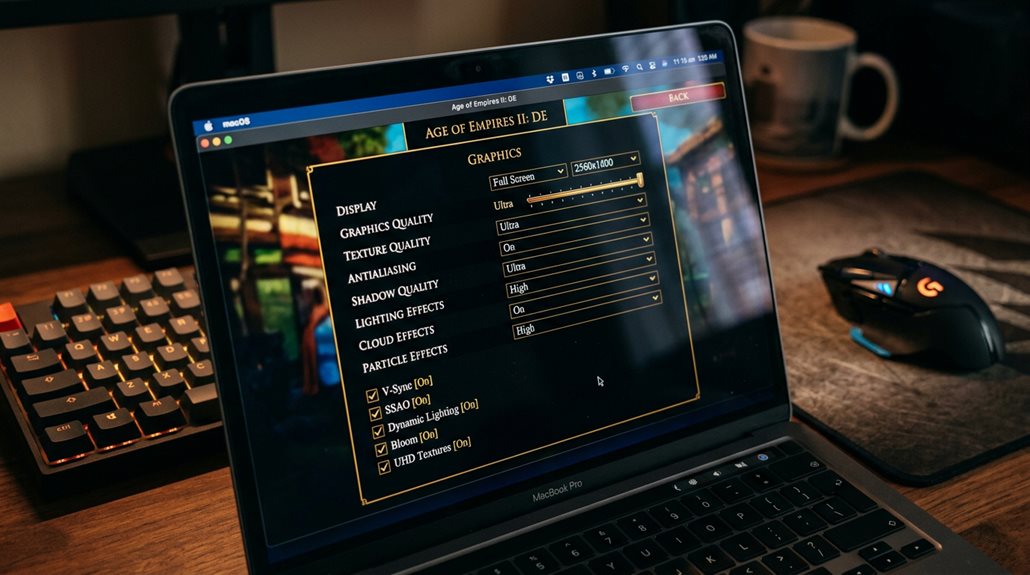
AOE2 Mac Graphics Settings: Best Options for Every Mac
To optimize Age of Empires 2 on Mac, you should set the game’s resolution to 1440×900 or 1680×1050 for sharper visuals, especially on Retina displays, and disable HiDPI mode to prevent blurring. Use Crossover’s compatibility modes such as D3DMetal or DXVK to improve graphics, and select a suitable Wine version like CX23.6.0 for stability. Adjust graphics settings to reduce clutter and enable color corrections if needed, ensuring smooth gameplay across your Mac model. Continuing will reveal how to fine-tune these options for the best experience.
Scout Report
- Use recommended resolutions like 1440×900 or 1680×1050 for Retina displays to ensure sharp visuals.
- Enable DXVK and Metal Compatibility modes in Crossover for improved graphics and performance.
- Disable HiDPI mode to reduce blurring and artifacts on Retina screens.
- Adjust pixel scaling and disable unnecessary visual effects for smoother gameplay.
- Regularly update graphics drivers and manage resources to prevent lag and crashes.
How to Set up Age of Empires 2 on Mac With Crossover

To set up Age of Empires 2 on a Mac using Crossover, you first need to install the Crossover software and place it within your macOS Applications folder. Then, create a dedicated Bottle and enable Compatibility modes, such as D3DMetal or DXVK, to improve graphics performance. Adjusting legacy settings guarantees better compatibility with modern hardware and game requirements. Ensuring that DXVK is enabled in the bottle settings can significantly enhance the game’s graphics rendering and overall stability. For optimal results, consulting the Ultimate AOE2 Mac Guide can provide additional tips on configuring performance settings tailored to your specific hardware.
Optimize Graphics and Resolution Settings for Retina Displays
Optimizing graphics and resolution settings for Retina displays requires understanding how these high-resolution screens handle image scaling and clarity.
Retina scaling often causes blurring, especially with color interpolation, which can introduce artifacts.
Using the recommended resolution of 1440×900 or 1680×1050 helps maintain sharpness.
Disabling HiDPI mode and adjusting pixel scaling reduces color interpolation errors for clearer visuals.
Additionally, understanding visual parity between different platform versions can help you adjust settings to achieve the best display quality.
Configure Crossover and Bottles for Smooth Performance
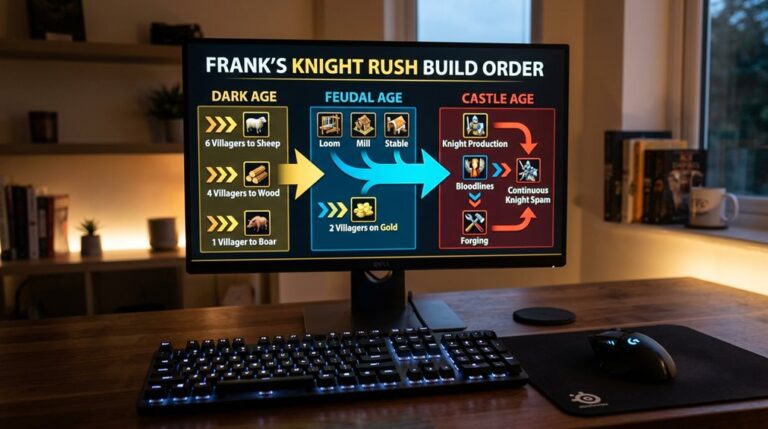
Configuring Crossover and bottles correctly is crucial for achieving smooth performance when running Age of Empires 2 on a Mac. Focus on Wine compatibility by selecting appropriate Wine versions, such as CX23.6.0 or the latest for M1/M2 Macs. Set environment variables like MVK_ALLOW_METAL_FENCES. Proper configuration guarantees stability, ideal graphics, and reliable gameplay. Additionally, understanding build orders in team games can help optimize performance and coordination during gameplay.
Enhance Visual Quality and Customize Controls
Adjusting the visual settings and control options can substantially improve your gameplay experience on a Mac. You should customize control schemes to suit your preferences and enable color blind adjustments to enhance map contrast. Disabling unnecessary visual clutter, like stumps and plants, and configuring accessibility features guarantees clearer visuals and better control, making gameplay more efficient and comfortable. Additionally, understanding which graphics options impact performance most significantly can help you fine-tune your settings for smoother gameplay.
Troubleshoot Common Performance and Graphics Issues
Many common performance and graphics issues on a Mac can disrupt your gameplay experience if not properly addressed. Problems like resolution mismatches, outdated drivers, and improper graphics settings can cause lag, blurry visuals, or crashes, affecting gameplay mechanics and multiplayer connectivity. Understanding the build order selection process can help optimize your game setup and reduce technical issues. Ensuring correct resolution, updating drivers, disabling unnecessary post-processing, and managing resources help improve stability and smoother performance.
Frequently Asked Questions
Can I Run Age of Empires 2 on Older Mac Models?
You can run Age of Empires 2 on older Mac models if they support virtualization or emulation, but performance varies. PowerPC Macs need classic emulators, while pre-2010 Intel Macs face compatibility issues, impacting game performance and stability.
Is There a Way to Improve Game Performance Without Reducing Graphics Quality?
To improve game performance without reducing graphics quality, focus on graphics optimization and performance enhancement by enabling DirectX, adjusting GPU preferences, updating drivers, installing Vulkan, and managing resource allocation for smoother gameplay.
How Do I Update Crossover and Bottle Configurations for New Game Patches?
To update Crossover and bottle configurations for new game patches, you check Crossover updates for compatibility, create a Windows 11 bottle with DXVK enabled, manually override DLLs, and adjust launch parameters for peak performance and stability.
Can I Use External Monitors With Different Resolutions for AOE2?
You can’t fully use external monitors with different resolutions for AOE2, as the game adapts to your desktop resolution, affecting display compatibility. For best results, match monitor resolutions or adjust desktop settings accordingly for seamless gameplay.
What Are the Best Settings for Multiplayer Stability on Mac?
To improve multiplayer stability on Mac, optimize graphics by lowering texture, shadow, and water quality, disable auto-scaling, and cap frame rate. Also, prioritize hardware settings, close background apps, and keep your system updated for smooth gameplay.
GG
Adjusting graphics and resolution settings on your Mac can greatly improve your Age of Empires 2 experience. By setting up Crossover properly, optimizing display options for Retina screens, and configuring performance settings, you guarantee smoother gameplay and better visuals. Troubleshooting common issues helps maintain stability. Following these steps provides a clear, effective way to enhance your game without unnecessary complexity. Proper setup allows you to enjoy improved performance and visual quality seamlessly on your Mac.