
AOE2 Mac Performance Settings: How to Optimize for macOS
To optimize AOE2 on macOS, start by updating your graphics drivers and adjusting in-game settings—lower resolution, disable effects, and set anti-aliasing to 2X. Use compatibility tools like CrossOver with a properly configured bottle, selecting Windows 11 64-bit and enabling Metal graphics backend. Manage CPU and GPU resources by limiting background processes, disabling unnecessary cores, and ensuring hardware acceleration is active. Connecting external GPUs or using the M-series Metal API can improve performance. Fine-tuning these options can help maintain stable, smooth gameplay; continuing will help you understand how to apply each step effectively.
Scout Report
- Update graphics drivers and disable unnecessary visual effects for smoother gameplay on macOS.
- Configure CrossOver with Windows 11 bottle and optimize graphics backend to D3DMetal.
- Adjust display resolution, zoom level, and graphics settings to match hardware capabilities.
- Limit background processes and manage network ports for stable, extended gaming sessions.
- Monitor system resources and GPU usage, enabling external GPU acceleration if available.
How to Troubleshoot Common AOE2 Performance Issues on macOS
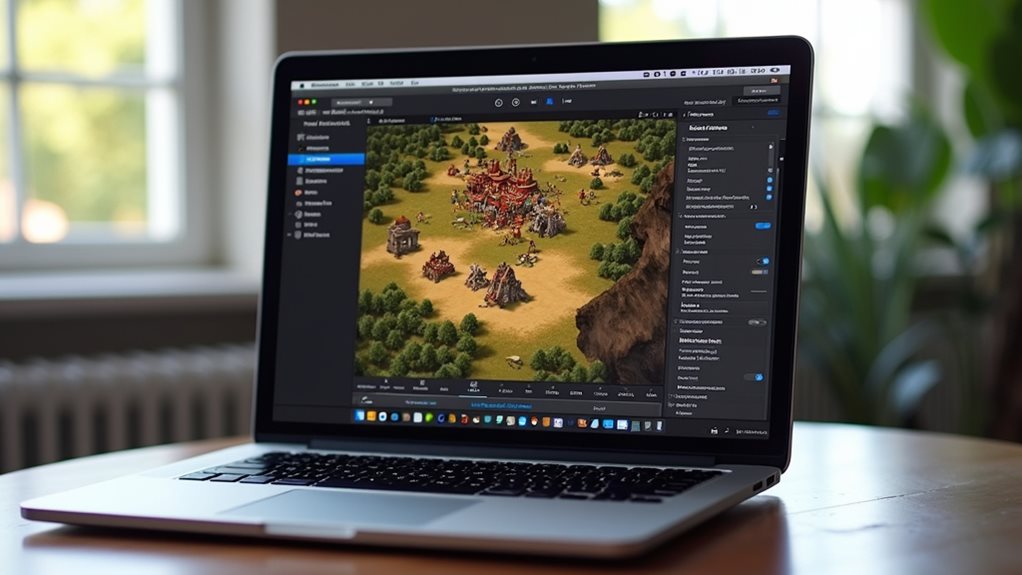
If you experience performance issues while playing Age of Empires II on macOS, there are several troubleshooting steps you can take to improve the game’s stability and responsiveness. Cloud optimization, such as using platforms like GeForce NOW, can provide smoother gameplay without lag. Additionally, updating your graphics drivers from NVIDIA or AMD helps reduce stutters and enhances visual stability. Persistent stuttering issues, as reported by many users across various Mac models and configurations, highlight the importance of exploring multiple troubleshooting avenues to achieve better performance. Understanding the game’s system requirements can also help identify potential hardware limitations contributing to these issues.
Setting Up CrossOver and Creating the Perfect Game Bottle
To set up CrossOver on your Mac, you need to install the software from the official website, making certain you choose the full version and avoid beta builds to guarantee stability.
After installation, creating a dedicated game bottle involves selecting the appropriate Windows environment, such as Windows 11 64-bit, and configuring the graphics backend to D3DMetal for compatibility and performance. D3DMetal supports DirectX 11 and 12 via a graphics API translation layer, ensuring better graphics rendering in many cases. Additionally, adjusting specific settings like RAM allocation and compatibility options helps optimize the bottle for running Age of Empires II smoothly, especially considering the Feral Interactive port launched in May 2026.
Installing CodeWeavers Crossover
Installing CodeWeavers CrossOver on a Mac involves several important steps to guarantee the software runs smoothly and efficiently.
First, download the `.zip` package from the official site, verify compatibility, and expand it.
Then, move the application to the Applications folder, open it with permission, and activate it.
Proper setup aids game modding and saves file management within the bottle environment.
Creating a Dedicated Bottle
Creating a dedicated bottle within CrossOver involves several specific steps to guarantee the environment is optimized for running Age of Empires 2 smoothly on a Mac.
You should customize the bottle by assigning a descriptive name and configuring environment variables like `WINEDLLOVERRIDES` to disable problematic DLLs.
Adjusting these settings enhances compatibility and performance, ensuring the game runs efficiently within this designed environment.
Configuring Compatibility Settings
Configuring compatibility settings within CrossOver is vital for optimizing the performance of Age of Empires 2 on a Mac, especially since different game versions and system configurations may require specific adjustments.
For vintage hardware, enabling features like Metal support, updating software, and modifying environment variables help guarantee stability. These settings improve compatibility by addressing issues related to legacy systems and recent software updates.
How to Optimize Graphics Settings for Better FPS and Stability
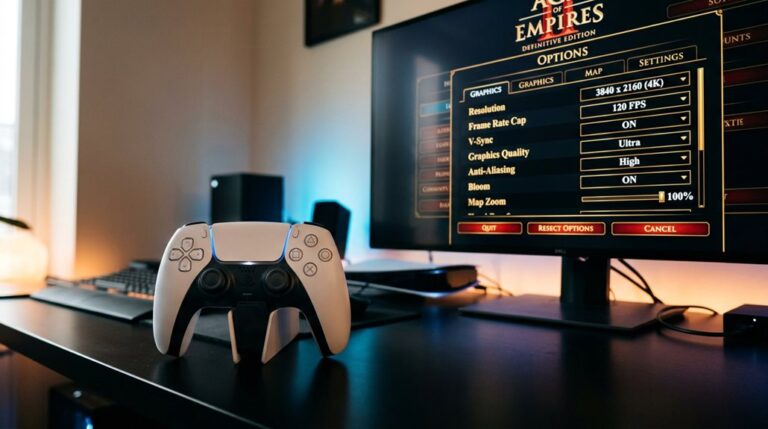
To improve your game’s performance and stability in Age of Empires 2 on a Mac, focus on adjusting graphics settings to reduce hardware load. Set display resolution to 1920×1080 and enable 50% zoom for clarity. Turn off enhanced visual effects, disable unnecessary post-processing, and optimize color calibration and sound settings. These steps help increase FPS and guarantee smoother gameplay. Additionally, adjusting graphics quality settings can significantly impact performance, so choose options that align with your Mac’s hardware capabilities.
How to Launch Age of Empires 2 for Maximum Speed and Responsiveness
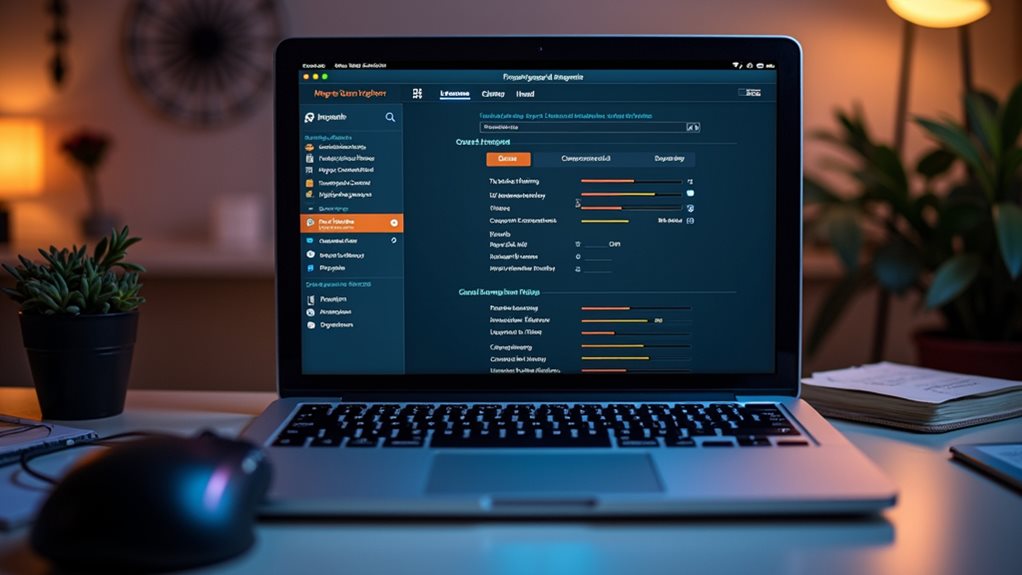
Launching Age of Empires 2 quickly and with minimal delay requires careful setup of your game’s startup process. Configure your Crossover profile for instant Steam launch and game access. Guarantee your network connection is stable for smooth gameplay. Set launch parameters like “skip intro” to reduce load times. Properly adjusting these elements enhances game speed and responsiveness. Additionally, optimizing your platform’s control differences can significantly improve your gameplay experience.
Managing CPU and GPU Resources for Smooth Gameplay
Managing CPU and GPU resources effectively is essential for ensuring smooth gameplay in Age of Empires 2. You should perform CPU balancing by disabling unnecessary cores and setting power options to maximum. GPU overclocking can be optimized by disabling effects and lowering texture resolution. These adjustments help maintain consistent performance and prevent lag during intense gameplay. Additionally, understanding the Drush Fast Castle Strategy can help you streamline your gameplay and reduce resource strain during critical moments.
How to Configure Network Ports and Firewalls for Stable Multiplayer
Configuring network ports and firewalls is essential for ensuring a stable multiplayer experience in Age of Empires 2 on macOS. You need to open specific ports such as TCP 8888, UDP 9999, and others. Set your firewall to allow incoming and outgoing traffic through these ports. Properly forwarding these ports on your router and verifying the connections can prevent issues like disconnections or desync during gameplay. Additionally, understanding crossplay combinations is important for seamless multiplayer sessions across different platforms.
Essential Port Settings
Have you ever experienced lag or disconnection issues while playing Age of Empires 2 multiplayer? To improve stability, you need to manage network security by configuring essential port settings.
Open specific ports like TCP 8888 and UDP 9999, which handle game data and lobby communication, ensuring your firewall allows inbound traffic. Proper port management is vital for a reliable multiplayer experience.
Firewall Configuration Tips
To guarantee a smooth multiplayer experience in Age of Empires 2, it’s important to properly set up your firewall to allow the game to communicate through your network.
Focus on firewall troubleshooting and network port management by enabling game applications like EMPIRES2.exe and AGE2X.exe.
Adding AOE2X.app to macOS exception lists is also recommended.
Additionally, verify that ports 8888 (TCP) and 9999 (UDP) are open and active.
Customizing Display Resolution and Zoom Levels for Clearer Visuals
Adjusting the display resolution and zoom levels on your Mac can markedly improve the visual clarity of Age of Empires 2: Definitive Edition. You should access macOS display settings, select a resolution that matches your native display, and enable “Show All Resolutions” to customize the display resolution. Additionally, setting appropriate zoom levels helps balance detail and prevents blurring, enhancing overall clarity. For optimal gameplay, consider customizing control remaps to better suit your playstyle and compensate for any visual limitations.
How to Enable Hardware Acceleration and Multi-GPU Support on Mac
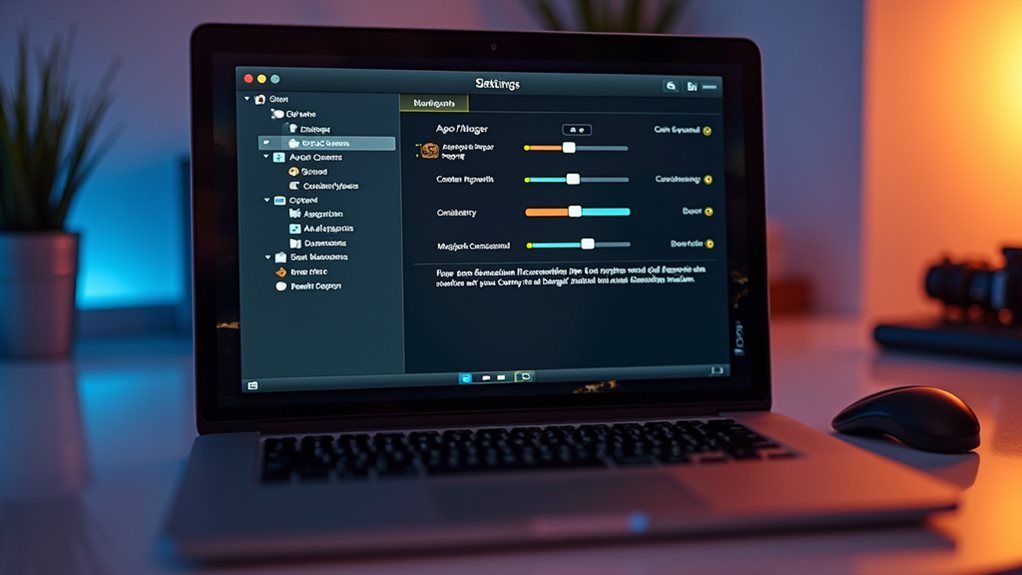
To improve game performance on your Mac, you need to guarantee the correct GPU is selected for your applications, especially for demanding games like Age of Empires II. Configuring multi-GPU support involves managing display settings and verifying that both graphics cards are properly connected and enabled, allowing the system to use the best GPU for intensive tasks. Additionally, understanding hardware acceleration can help you optimize performance further by ensuring your Mac leverages its full graphical capabilities.
Ensuring GPU Selection
Are you aware of how to confirm your Mac uses the correct GPU settings and supports hardware acceleration, especially when running games like Age of Empires II?
To do this, verify GPU selection in macOS energy preferences. Perform hardware troubleshooting if acceleration issues occur, and make certain driver updates are installed.
Proper GPU configuration helps optimize performance and prevents hardware-related problems.
Configuring Multi-GPU Support
Enabling multi-GPU support on a Mac involves understanding how macOS uses different graphics architectures and configuring your system to maximize both integrated and discrete GPUs. This setup improves multi GPU configuration and shader optimization by allowing direct hardware access with Metal 3, leveraging high memory bandwidth on M-series chips, and enabling external GPU acceleration via Thunderbolt 4 or USB4, optimizing rendering and parallel processing.
Troubleshooting Graphics and Performance Problems in AOE2
When experiencing graphics and performance issues in Age of Empires II on a Mac, it’s important to systematically troubleshoot each aspect of the game’s settings and hardware configuration. Adjust vintage graphics features, disable color correction, and set anti-aliasing to level 2X to improve performance. Turning off unnecessary visual effects and optimizing resolution also help stabilize gameplay. Additionally, understanding the performance differences on M1 to M4 chips can guide you in adjusting settings for smoother gameplay.
Prioritizing Game Resources With System Tools Like Process Lasso
Since Process Lasso is only available for Windows and doesn’t support macOS directly, optimizing game resources on a Mac requires alternative tools like iStat and Metal for system monitoring and CPU tuning.
These tools allow manual CPU core binding, process priority control, and background process management, helping reduce input lag, improve FPS stability, and optimize memory allocation for better Age of Empires II performance.
Top Tips for Maintaining Peak Performance During Long Gaming Sessions
Maintaining peak performance during long gaming sessions requires careful management of your game’s settings and your system’s resources to prevent lag, stuttering, and overheating.
Historical strategies include disabling unnecessary graphics effects and adjusting resolution, while considering DLC impacts on performance.
Limiting background processes and optimizing network connections help sustain stability, ensuring consistent gameplay without interruptions during extended play.
Frequently Asked Questions
How Do I Verify if My Game Is Utilizing the Correct GPU on macOS?
You verify GPU utilization through GPU monitoring tools like Activity Monitor, checking the GPU tab during gameplay, and confirming graphics card selection in System Preferences. This helps guarantee your game uses the correct GPU for peak performance.
Can I Disable Background Processes to Improve AOE2 Performance?
Yes, you can improve AOE2 performance through background process management by closing unnecessary apps and disabling system services, which optimizes system resource allocation. This reduces CPU load, helping your game run more smoothly and efficiently.
What Are the Best Port Configurations for Multiplayer Stability?
To guarantee multiplayer stability, open TCP port 8888, UDP port 9999, and port 3478, 5222; configure your firewall properly; use wired connections; and enable QoS. These steps reduce network latency, improve connection stability, and enhance gameplay experience.
How Do I Adjust Zoom Levels Without Affecting Gameplay?
You can adjust zoom levels by using screen scaling options in the graphics tab and customizing hotkeys for quick zoom changes, ensuring gameplay remains unaffected. These adjustments offer better battlefield visibility without impacting game mechanics.
Is There a Way to Optimize Game Performance During System Updates?
During system updates, performance optimization techniques are limited due to system restrictions. To minimize impact, schedule updates during non-gaming hours, disable automatic updates, and back up game data beforehand, ensuring smoother gameplay afterward despite system update impacts.
GG
Optimizing Age of Empires 2 on macOS involves adjusting graphics settings, managing system resources, and ensuring hardware acceleration is enabled. Troubleshooting common performance issues can improve game stability and responsiveness. Using tools like CrossOver or process management software helps prioritize game resources. Regularly maintaining your system and applying these specific configurations can lead to smoother gameplay, higher FPS, and a better overall experience, especially during long gaming sessions.