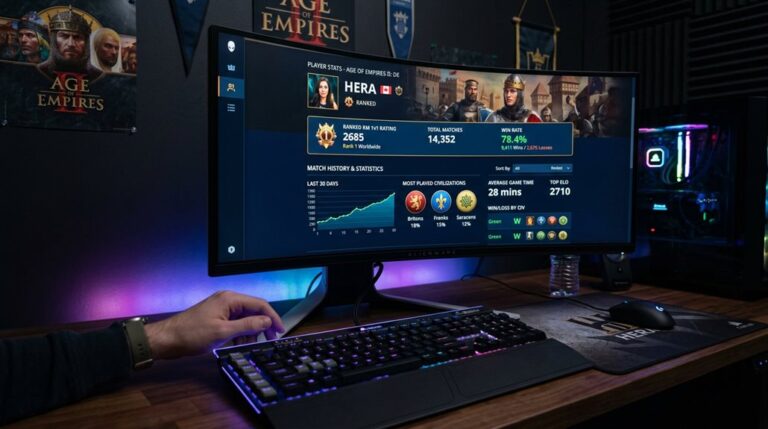

AOE2 PS5 Crossplay: How to Play With PC Players
To play Age of Empires II on PS5 with PC players, you must enable crossplay in the game’s options menu, which allows multiplayer battles across platforms. You need to link your Xbox or Microsoft account properly to guarantee seamless access and prevent connection issues. Additionally, players can choose to support keyboard and mouse inputs for fair competition, with input-based matchmaking managing different devices. Keep in mind that matchmaking may separate players based on input device and platform, but by following these steps, you can enjoy cross-platform gameplay. Exploring further will reveal more about optimizing your multiplayer experience.
Scout Report
- Enable crossplay in the game’s Options menu on PS5 to play with PC players.
- Link your Xbox or Microsoft account for seamless cross-platform access.
- Verify input device settings; keyboard/mouse players join mixed queues, controllers join console-only queues.
- Ensure crossplay is activated and input balancing is enabled for fair matchmaking.
- Confirm account security and profile linkage to prevent connection issues during multiplayer sessions.
Is Crossplay Supported in Age of Empires 2 for PS5 and PC?

Yes, crossplay is supported in Age of Empires II: Definitive Edition for both PS5 and PC, allowing players to join the same multiplayer battles. Community feedback has helped optimize game settings for smooth performance across platforms. The game supports full cross-platform play and is designed to guarantee fair competition, with features like input separation and toggles to enable or disable crossplay. Crossplay can be enabled in-game, ensuring players can easily join matches regardless of their platform. This support also reflects the game’s mechanical compatibility, which is crucial for a seamless multiplayer experience across different devices.
How to Enable Crossplay on Your PS5 and PC
To activate crossplay in Age of Empires II: Definitive Edition on your PS5 or PC, you need to adjust specific settings within the game and your device. Turn on the Crossplay feature in the game’s Options menu. Verify server latency is optimized. Enable input balancing to guarantee fair gameplay between platforms. Confirm these settings in both game and party menus before matching. Ensure your accounts are linked properly, as this is essential for cross-platform functionality to work seamlessly. Additionally, platform compatibility settings should be checked to prevent any connection issues.
Link Your Xbox and Microsoft Accounts for Crossplay Access
Linking your Xbox and Microsoft accounts is crucial for crossplay in Age of Empires II on PS5, as it enables the game to recognize your profile across platforms.
You must access the profile menu, sign in via the Microsoft option, and verify your account with a code.
This process guarantees account security and proper profile management, making crossplay possible only after successful linking.
Additionally, ensuring your account is linked correctly can help you avoid connection issues during gameplay.
How to Make Keyboard and Mouse Inputs Fair in Crossplay Matches

Ensuring fair play between keyboard/mouse players and controller users in crossplay matches requires specific mechanisms within the game. Input fairness is maintained through input-based matchmaking queues, which separate players by input device. Adjusting input configuration, such as enabling keyboard and mouse support on PS5 and toggling cross-input matchmaking, helps create balanced competition and prevent unfair advantages. Additionally, understanding the default PS5 control layout and how experienced players remap buttons can assist in optimizing gameplay and maintaining fairness.
How Matchmaking Differs for PS5 and PC Players
Matchmaking for PS5 and PC players differs mainly based on the input device and whether crossplay is enabled.
Matchmaking queue differences occur because PS5 players with keyboard and mouse match with PC users in mixed queues, while controller-only PS5 players join console-only queues.
The input device impact influences queue assignment, with keyboard and mouse users prioritizing mixed queues and controller users remaining in console-only queues.
Additionally, visual parity can influence matchmaking preferences, as players may choose platforms based on graphical quality and performance.
Frequently Asked Questions
Can I Disable Crossplay on PS5 or PC Individually?
You can disable crossplay on PS5 through platform-specific settings, giving you crossplay customization. However, on PC, individual crossplay disabling isn’t possible, so you’re automatically matched with all platforms, limiting your control over cross-network play options.
Are There Specific Network Requirements for Smooth Crossplay?
For smooth crossplay, guarantee your network supports stability by opening recommended ports like TCP 8888 and UDP 9999. This helps with reliable matchmaking, reduces lag, and improves your overall experience across platforms.
Does Crossplay Affect Game Progress and Achievements?
Crossplay doesn’t affect game progress synchronization or achievement tracking. Your characters, levels, and quest completion sync seamlessly across platforms, and achievements unlock based on gameplay milestones, ensuring your progress and accomplishments stay consistent regardless of the device you use.
Can I Use a Different Controller for Crossplay Matches?
Yes, you can use a different controller for crossplay matches if it’s compatible with your platform. Confirm controller compatibility and adjust matchmaking preferences accordingly, as some controllers may need firmware updates or specific configurations for seamless cross-platform play.
How Do Latency Issues Impact Crossplay Gameplay Experience?
Latency variability in crossplay gameplay causes delays, lag, and connection drops, disrupting your experience. Network optimization is essential to reduce these issues, ensuring smoother gameplay, faster response times, and improved overall performance for both PS5 and PC players.
GG
In conclusion, Age of Empires 2 on PS5 does support crossplay with PC players, but you need to enable specific settings and link your Microsoft accounts. Making certain of fair gameplay involves adjusting input methods, such as keyboard and mouse, and understanding differences in matchmaking processes. By following these steps, you can enjoy multiplayer matches across platforms with minimal issues. However, always verify your account connections and settings to guarantee smooth and fair gameplay experiences.